

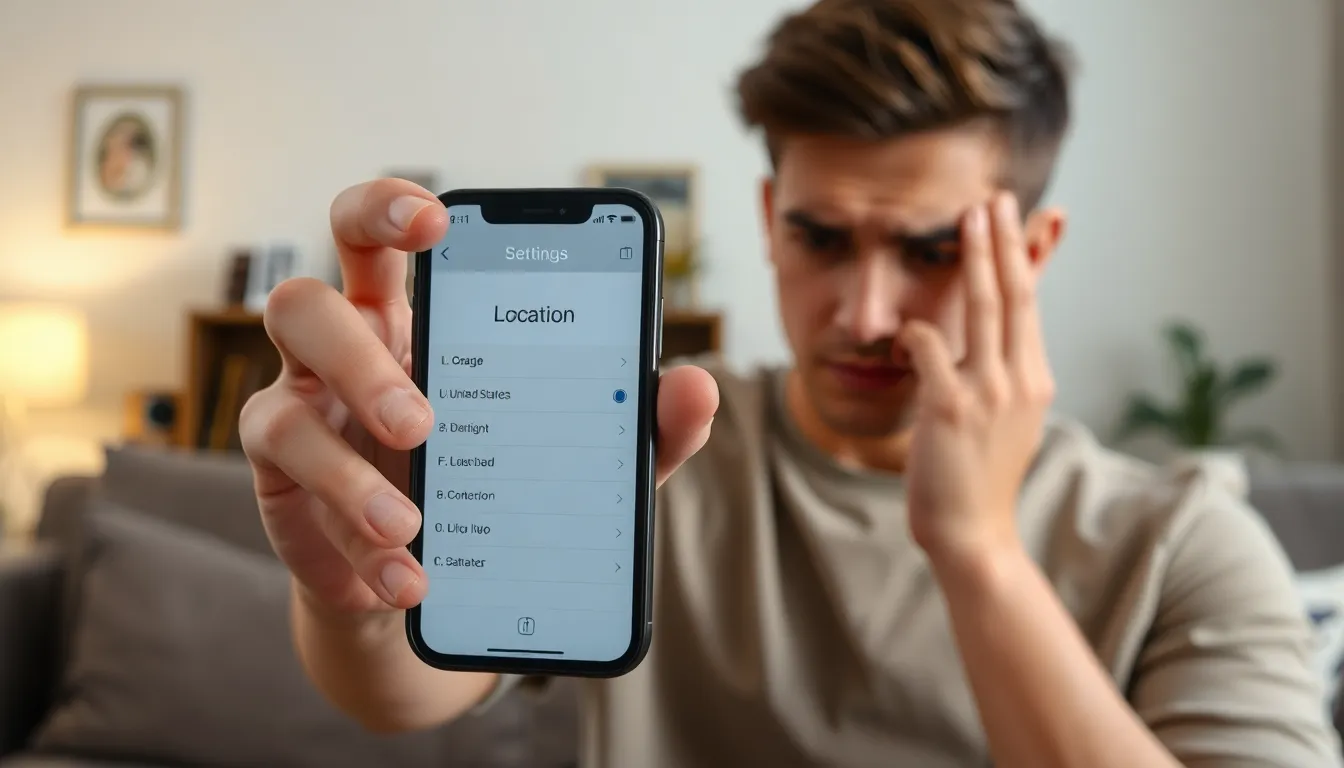
Ever tried to share your location on your iPhone only to be met with a stubborn refusal? It’s like asking a cat to take a bath—frustrating and downright confusing. Whether you’re trying to guide a friend to your favorite coffee shop or avoid getting lost in a new city, location sharing should be as easy as pie. So why does your iPhone suddenly act like it’s on a secret mission?
Common Reasons For Location Sharing Issues
Several factors can prevent location sharing on an iPhone. Understanding these common reasons helps troubleshoot the problem effectively.
Location Services Disabled
Location services need activation for sharing to occur. If settings are turned off, location sharing won’t work. Users can check this by going to Settings, tapping Privacy, and then selecting Location Services. Ensuring that location services are enabled for specific apps also plays a critical role. If a chosen app is restricted from accessing location services, it cannot share the user’s location successfully.
Network Connectivity Problems
Reliable network connectivity is vital for location sharing. Without a strong Wi-Fi or cellular connection, location services may fail to function appropriately. Problems like poor signal strength or network outages can disrupt sharing abilities. If users experience connectivity issues, checking the network status is important. Refreshing the network connection by toggling Airplane Mode on and off can also help resolve minor connectivity problems.
Outdated iOS Version
Using an outdated iOS version can lead to location sharing challenges. Regular updates often contain fixes and improvements for bugs affecting location services. Users should regularly check for available updates by navigating to Settings, then selecting General, and choosing Software Update. Keeping the device up to date ensures all features, including location sharing, perform optimally. Users may encounter difficulties with location services if they run outdated software versions.
Troubleshooting Steps
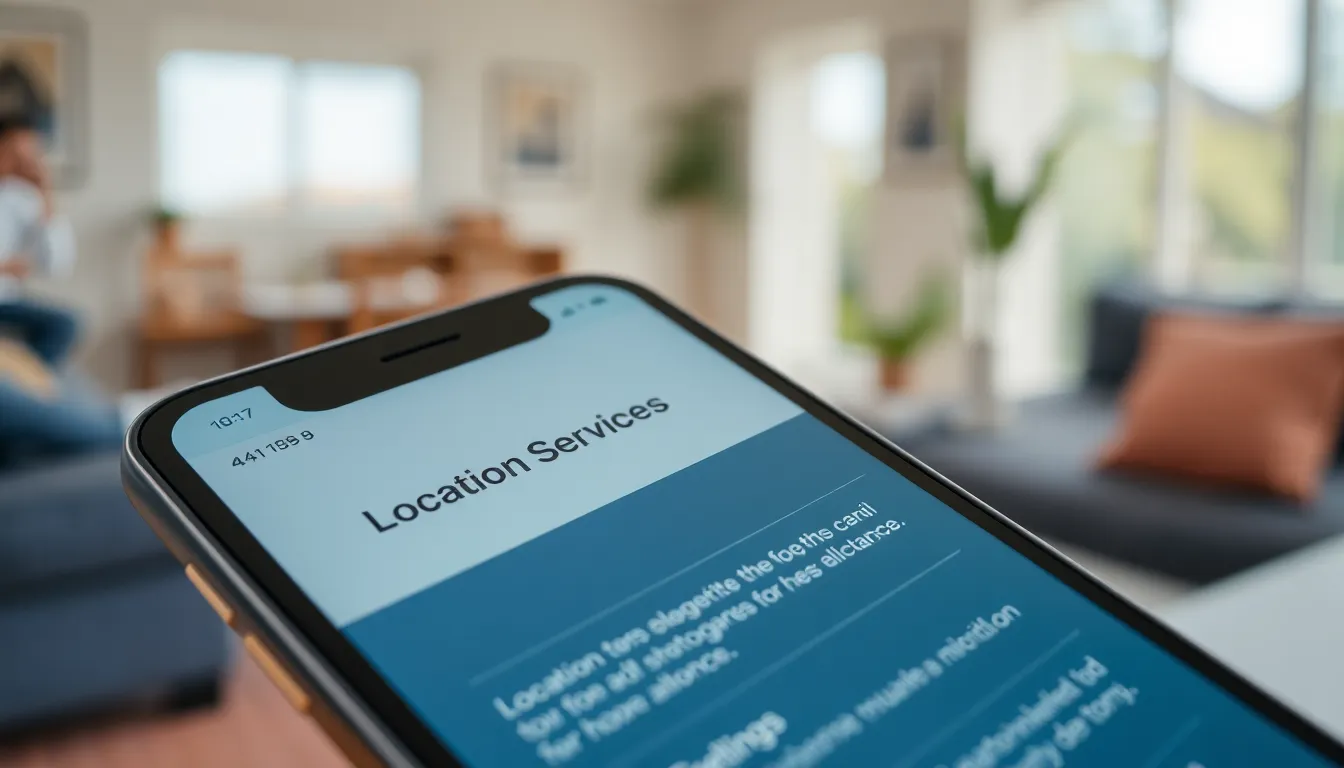
To address location sharing issues on an iPhone, follow these troubleshooting steps. This approach helps identify and rectify common problems quickly.
Checking Location Settings
Location services must be enabled for sharing to work. Navigate to Settings, then Privacy, and tap Location Services. Ensure the option is turned on, and check that specific apps have permission to access location data. Selection of “While Using the App” or “Always” can optimize functionality. If settings appear correct, try toggling Location Services off, then back on. This simple act often resolves minor glitches.
Restarting Your Device
Restarting an iPhone can fix many issues, including those related to location sharing. To restart, press and hold the side button and either volume button until the power off slider appears. Slide it to turn off the device, then hold the side button again to power it back on. This process refreshes system processes, potentially clearing any temporary problems that might impede location services.
Updating iOS
Keeping iOS updated ensures the device has the latest features and bug fixes. To check for updates, go to Settings, then General, and select Software Update. If an update is available, download and install it. An updated operating system often resolves compatibility issues and improves performance of location sharing features. Regular updates are vital for optimal device functionality.
App-Specific Settings
Location-sharing functionality often depends on app-specific settings. Users must verify these settings to ensure seamless location sharing.
Settings for Messages
Messages has its own location-sharing settings. To enable sharing, users should open the Messages app. Tapping on a conversation will display options. From there, tapping on the name or profile picture of the contact reveals additional settings. Users can select “Share My Location” to share for a specific duration. Ensuring that location services are enabled in the device settings is crucial. Without it, even the Messages app cannot share location data.
Settings for Find My Friends
Find My Friends requires specific settings as well. Accessing this feature involves opening the app and navigating to the user’s account settings. Users need to ensure that location sharing is enabled. This enables friends and family members to see their location. If the app isn’t showing location information, checking that Location Services are enabled is critical. Users should also confirm they’ve granted permission for the app to access location data consistently. Proper settings in Find My Friends enhance the experience by ensuring reliable location sharing.
Additional Tips
Users may find additional methods to address location-sharing issues on their iPhones. Exploring these options can lead to effective solutions for persistent problems.
Resetting Location & Privacy Settings
Resetting Location and Privacy settings may help resolve location sharing issues. This option restores the original settings for all apps, ensuring they adhere to the iPhone’s default configurations. Users can navigate to Settings, select General, then scroll down to Transfer or Reset iPhone, and tap on Reset. From there, choosing Reset Location & Privacy proves straightforward. After completing this step, individual apps will require permission to access location data again. This action often helps fix glitches that hinder location sharing capabilities.
Contacting Apple Support
Contacting Apple Support is a viable option if problems persist. Support agents possess the expertise to diagnose more complex issues that general troubleshooting cannot resolve. Users can access support through the Apple website, calling, or using the Apple Support app. Providing detailed information about the problem helps agents identify and suggest suitable solutions effectively. Apple Support also monitors ongoing issues, offering updates when new fixes become available. Engaging directly with support ensures users get tailored assistance based on their specific device and situation.
Location sharing on an iPhone can often feel frustrating and complicated. By understanding the common issues and following the troubleshooting steps outlined, users can overcome obstacles and regain access to this essential feature. Ensuring location services are enabled and keeping the device updated are key steps in resolving many problems.
If challenges persist after trying the recommended solutions, reaching out to Apple Support can provide additional assistance. With the right approach, users can enjoy seamless location sharing, enhancing their overall iPhone experience.


